7 Mistakes You're Making With AI Productivity Tools (And How to Fix Them)

You can install an AI productivity tool in minutes. The harder part is using it in a way that actually saves time.
I see the same pattern repeatedly: someone tries five new apps, pastes in half a sentence, trusts the first answer, and then wonders why their workflow feels even more chaotic. The tools are not always the problem. The setup is.
After reviewing tools across scheduling, notes, document research, messaging, and presentations, I’ve found seven mistakes that quietly reduce the value of AI productivity tools. Let’s look at what goes wrong and how you can fix it.
1. You choose the tool before defining the task
“AI productivity tool” is a broad category. A calendar assistant, PDF researcher, note-taking assistant, and presentation maker may all improve productivity, but they solve completely different problems.
If you start by downloading whatever is trending, you can easily end up with overlapping subscriptions and a confusing pile of dashboards. That is not productivity. That is administrative work wearing a futuristic jacket.
How to fix it
Start with one repeated pain point:
- Your calendar keeps changing: Try Reclaim.
- Your notes, emails, and ideas are scattered: Explore Saner.AI.
- You want to delegate tasks from messages or voice notes: Look at Notis.
- You spend too long reading reports or PDFs: Try ChatPDF.
- You repeatedly build presentations from the same source material: Consider MagicSlides.
Pick one workflow. Measure it for a week. Only then decide whether you need another tool.
This is also where a curated directory helps. Instead of searching through thousands of vague “AI productivity” results, you can compare tools by their actual use case, platform, and strengths on AI Tool Corner.
2. You give AI a vague prompt and expect a precise result
“Summarize this.”
“Organize my tasks.”
“Write a better version.”
These prompts might produce something usable, but they leave too many decisions to the tool. What should it prioritize? Who is the audience? What format do you need? What does “better” mean?
The result is usually generic. Then you spend ten minutes fixing an output that could have been useful if the first instruction had been clearer.
How to fix it
Give the tool a small brief:
- Explain the goal.
- Add the relevant context.
- Name the audience.
- Set a format.
- Add constraints.
- Tell the tool what to do if information is missing.
For example:
Turn these meeting notes into a task list for a three-person marketing team. Group tasks by owner, include deadlines where mentioned, mark unclear items as “Needs confirmation,” and keep each task under fifteen words.
That is much more useful than “organize these notes.”
Saner.AI is built around this kind of context-rich workflow. It can bring together notes, emails, tasks, documents, and calendar information, then let you search or ask questions across that material. It also supports quick capture through text, voice notes, browser input, and uploads.
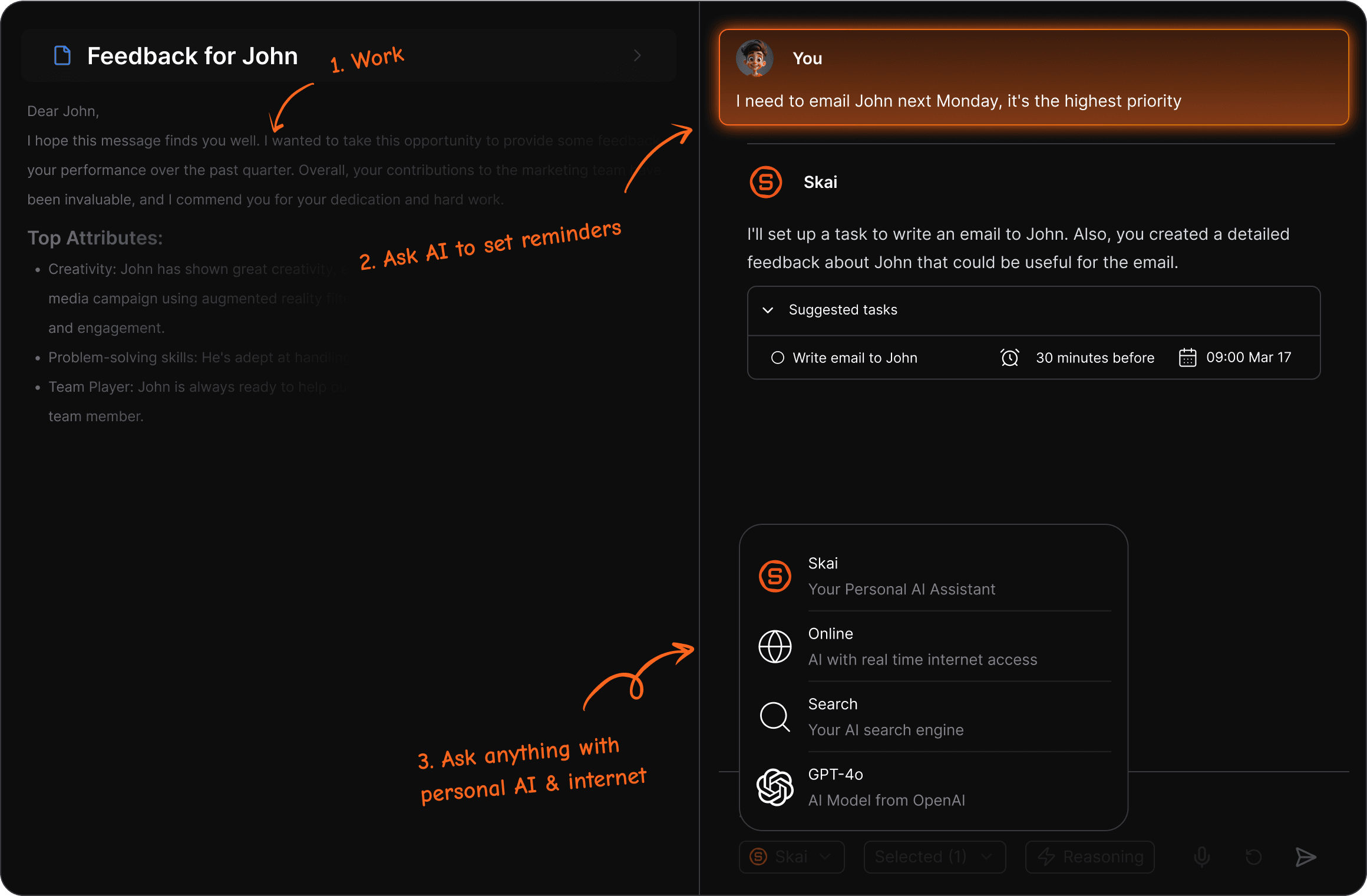
The practical benefit is simple: you do not have to reconstruct your context every time you ask for help. But you still need to organize your workspace and check what information the tool can access.
3. You collect information but never turn it into action
Saving articles, meeting notes, voice memos, and screenshots feels productive. Sometimes it is just a more sophisticated form of procrastination.
The real test is what happens next. Can you find the information later? Can you turn it into a task? Can you connect it to an existing project?
How to fix it
Create a simple capture-to-action loop:
- Capture the thought quickly.
- Add enough context to recognize it later.
- Ask AI to summarize or categorize it.
- Convert useful items into tasks.
- Review the task list at a regular time.
Saner.AI can help here by suggesting tags, surfacing related notes, and turning rough thoughts into more structured plans. Notis takes a different approach. You can send a voice note, message, file, or email and ask it to create a Notion entry, draft content, schedule an event, or update another connected app.
In our Notis review, the voice-first workflow was especially interesting. A rough idea could become a blog draft or structured database entry without requiring you to open a dedicated productivity app.
That is useful when you are walking between meetings or suddenly remember an important task. But keep the first version simple. Connect one workspace, test one action, and confirm that the result lands in the right place before adding more permissions.
4. You expect AI to fix a calendar that has no clear rules
Calendar automation sounds magical until the tool has to decide what “important” means.
Should it move your exercise block? Protect your writing time? Accept a meeting during lunch? Split a large task into smaller sessions? If you do not define your preferences, the system has to guess.
How to fix it
Before using an AI calendar assistant, define:
- Working hours
- Meeting hours
- Focus-time targets
- Task priorities
- Flexible versus fixed events
- Buffer time between meetings
- Deadlines and preferred times
Reclaim works with Google Calendar and Outlook and can schedule tasks, habits, focus blocks, meetings, and buffers around your existing commitments.
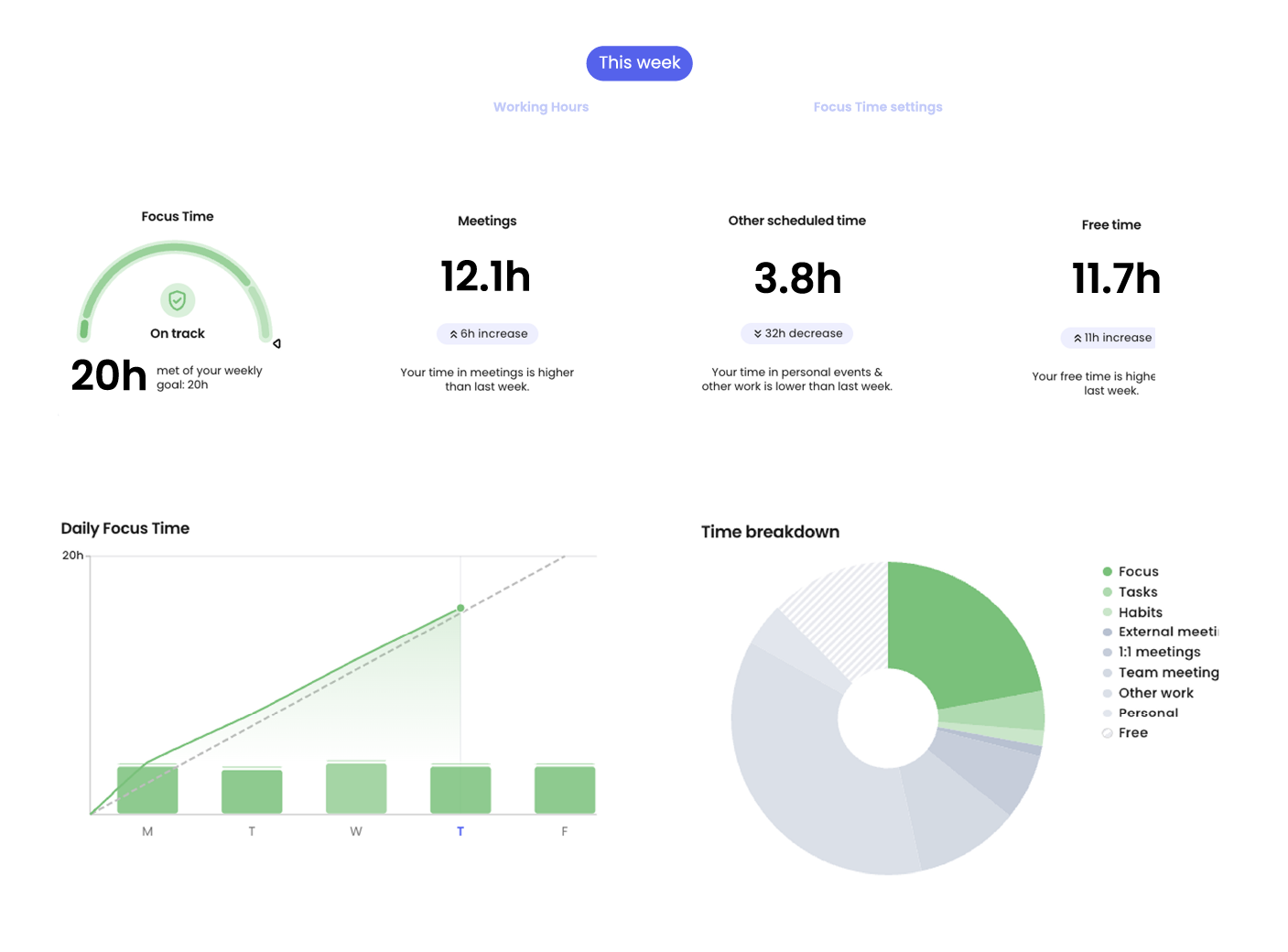
In the AI Tool Corner review, Reclaim successfully moved flexible habits and focus blocks when new meetings appeared. That is the part that makes time blocking practical instead of fragile.
But Reclaim can feel like overkill if your calendar barely changes. It also requires calendar access and careful setup. Start with one focus-time goal and a few recurring tasks. Let it learn your week before you hand over every scheduling decision.
The free Lite plan makes it relatively easy to test, although paid plans and feature limits can change. Check the current Reclaim pricing before committing.
5. You trust summaries without checking the source
AI summaries are fast. They are not automatically correct.
A document assistant may misunderstand a table, miss a qualification, or present an interpretation as a fact. This matters even more when you are working with contracts, financial reports, research papers, or internal policies.
How to fix it
Use AI to find and explain information, then verify important claims against the original source.
A reliable document workflow looks like this:
- Upload the document.
- Ask for a short summary.
- Ask specific follow-up questions.
- Request page references or citations.
- Open the cited section.
- Confirm the wording before acting on it.
ChatPDF is designed for this workflow. You can upload PDFs and other supported files, ask questions, compare documents, and use citations linked to the original content.
That source-grounded approach is much more useful than asking a general chatbot to “tell me what this contract says.” ChatPDF also offers a limited free plan, while usage limits and paid features may vary.
One more important habit: do not upload confidential documents automatically. Read the current privacy policy, check retention details, and use an approved tool for regulated or highly sensitive information.
6. You generate slides before deciding what the audience needs
A polished presentation can still be a bad presentation.
AI slide makers are excellent at producing structure, layouts, and visual variety. They cannot know your audience, your delivery style, or which argument matters most unless you tell them.
How to fix it
Write a basic story before generating slides:
- What should the audience understand?
- What problem are you addressing?
- What evidence supports your point?
- What decision or action should follow?
- Which details belong in an appendix?
Then give the tool your outline, source document, or URL.
MagicSlides can turn prompts, documents, PDFs, PowerPoint files, images, videos, YouTube links, and URLs into editable presentations. It also lets you revise slides through an AI chat interface.

I like this kind of workflow because it removes the blank-page problem. You can generate a first deck quickly, then spend your time improving the argument instead of dragging text boxes around.
Still, review every slide. Check numbers, image rights, formatting, speaker notes, and export compatibility with PowerPoint or Google Slides. A fast first draft is valuable. A first draft presented as final is risky.
7. You automate actions and stop reviewing the results
This is the biggest mistake.
AI productivity tools can draft emails, update databases, create tasks, move calendar events, and trigger workflows in other apps. That is powerful. It also means a small misunderstanding can travel across several systems very quickly.
Notis, for example, can connect messaging channels with tools such as Notion, Gmail, Google Calendar, Slack, and many other services. In testing, some actions worked impressively well, while others needed clearer instructions, follow-up prompts, or manual confirmation.
How to fix it
Use three levels of automation:
- Draft: AI prepares the output, but you approve it.
- Assist: AI performs low-risk actions, such as tagging notes or creating internal tasks.
- Automate: AI runs repeatable workflows after you have tested them several times.
Also create a quality checklist:
- Did it use the correct account?
- Did it update the correct record?
- Are names, dates, and links accurate?
- Did it expose private information?
- Does the output match your tone?
- Can you undo the action?
Track a simple metric, too. Measure time saved, corrections needed, or tasks completed. If the automation saves five minutes but creates fifteen minutes of cleanup, it is not helping yet.
A simple way to use AI productivity tools better
You do not need a complicated AI stack. Try this starter system:
- Pick one recurring bottleneck.
- Choose one tool designed for that bottleneck.
- Give it clear instructions and useful context.
- Start with drafts or low-risk actions.
- Review every important output.
- Track the result for one week.
- Expand only when the workflow is reliable.
The best AI productivity tools do not remove your judgment. They reduce the repetitive work around it.
If you want to compare more tools by category, use the AI Tool Corner directory. We manually review and curate tools for productivity, automation, coding, design, marketing, image generation, and video, so you can spend less time hunting and more time testing workflows that may genuinely improve your day.
Frequently asked questions
What are AI productivity tools?
AI productivity tools help you complete work faster by handling tasks such as scheduling, note organization, document analysis, research, writing, and presentation creation. The best tool depends on the specific workflow you want to improve.
Are AI productivity tools worth paying for?
They can be, especially when a tool removes a repeated bottleneck. Test the free plan or trial where available, then compare the time saved with subscription costs, usage limits, and the amount of correction required.
Which AI productivity tool should I try first?
Start with the task that causes the most friction. Try Reclaim for changing schedules, Saner.AI for scattered information, Notis for delegated workflows, ChatPDF for document research, or MagicSlides for presentation creation.
Are AI productivity tools safe for sensitive information?
It depends on the provider, plan, permissions, and data policy. Avoid uploading confidential information until you have reviewed how the tool stores, processes, and deletes your data. Always keep human review in sensitive workflows.